Customer Success Manager at RazorPlan, Objectway
A Certified Financial Planner that has been working with other financial planners to grow their business and deliver financial plans to their clients. As a veteran of the financial planning software industry, Mike can provide a wealth of knowledge about building financial plans and identifying opportunities.
RazorPlan reports are designed to be as visual and flexible as you need them to be. You can easily customize the report logo, swap out the cover page image, and even adjust the bullet icons on each page, giving your reports a look that’s truly your own.


These images can be changed in the program, by clicking the button in the upper right-hand corner. In this section there is a Report Setting tab which provides controls for the RazorPlan report. On this tab there are three image areas that can be customized: Report Logo, Report Cover and Report Bullet.

To add an image to any of these three areas simply click on the button and then use window explorer to find the file that will be used in the selected area. Once the image on your system is selected, click the open button (or double-click on the desired image) to upload the image. RazorPlan will display the image below the section it is uploaded to indicating that the logo, cover and/or bullet is using an image that is different from the RazorPlan default images. Clicking the button next to the image will remove the image from either the report logo, cover or bullet area. Images can be uploaded and removed as many times as necessary.
For best results, image files that are uploaded should be JPG or PNG file format. The uploaded files should have the following specifications:
- Report Cover – 1127 pixels by 496 pixels and no bigger than 2 MBs
- Report Bullet – 163 pixels by 86 pixels and less than 2 MBs
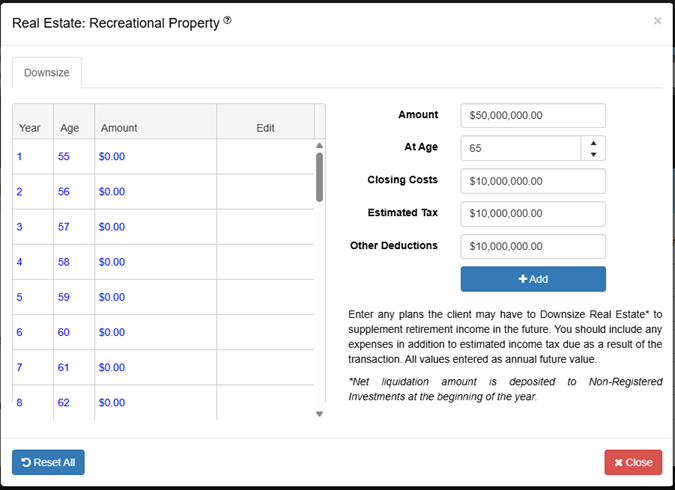
Once an image is uploaded, all reports created from that point forward display the uploaded images.
With this ability to add powerful imagery to the report being easier than ever before, there are some resources that can be helpful in finding images. Below is a list of free stock image websites that could be useful when customizing the RazorPlan report:
These features are available in RazorPlan, if there are any questions about using these report customization features please do not hesitate to contact support at 866 675 7055 or support@razorplan.com.
Recent Posts

Improve Client Investment Planning with RazorPlan’s New Individual Assets Feature

Why business owners’ biggest planning gap comes after the sale

Protecting your Legacy: Planning for Private Company Shares

Optimizing your Retirement Strategy with RazorPlan Decumulation
Categories